This step involves entering the contacts that would be sent in your bulk campaign.
- Click on Contact Broadcast button
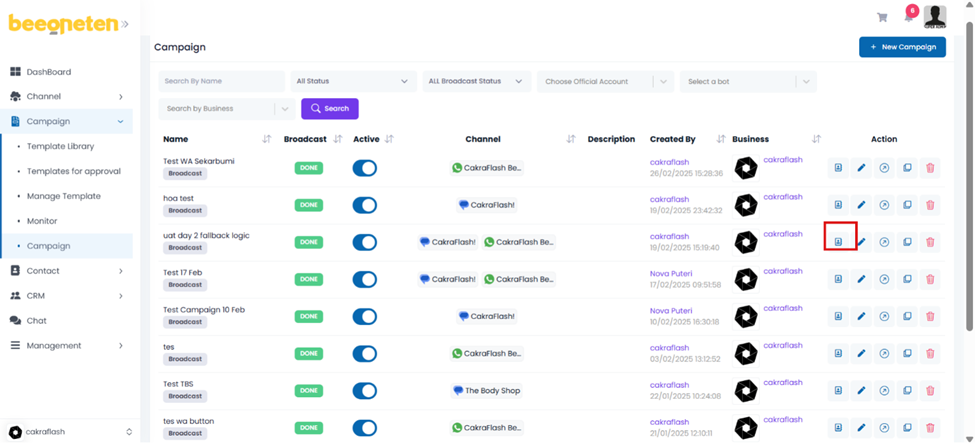
Click on the Add contact button to select the contacts you have imported into the Contacts section at step 4. Create a group of contacts
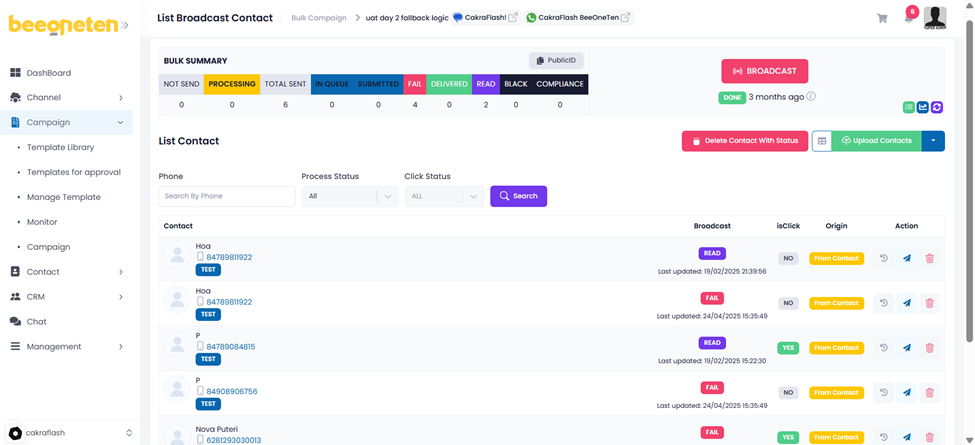
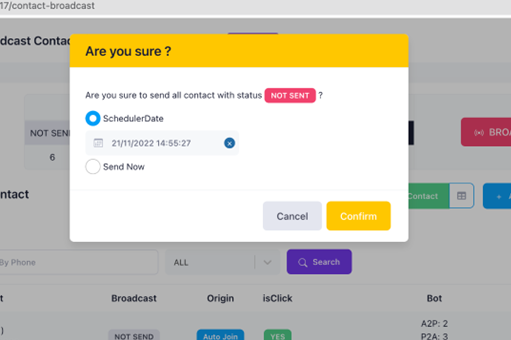
- Click on Send button (at column Action) or Broadcast all button to send messages to those contacts.

- Send button: send message to specific contact you select
- Broadcast all: send messages to all added contacts
- Only send messages to contacts whose status is Not Send
- Able to schedule the message to be sent at a later date and time, or you can send it immediately. [Note: For Zalo ZNA, after 9 p.m., messages cannot be sent]
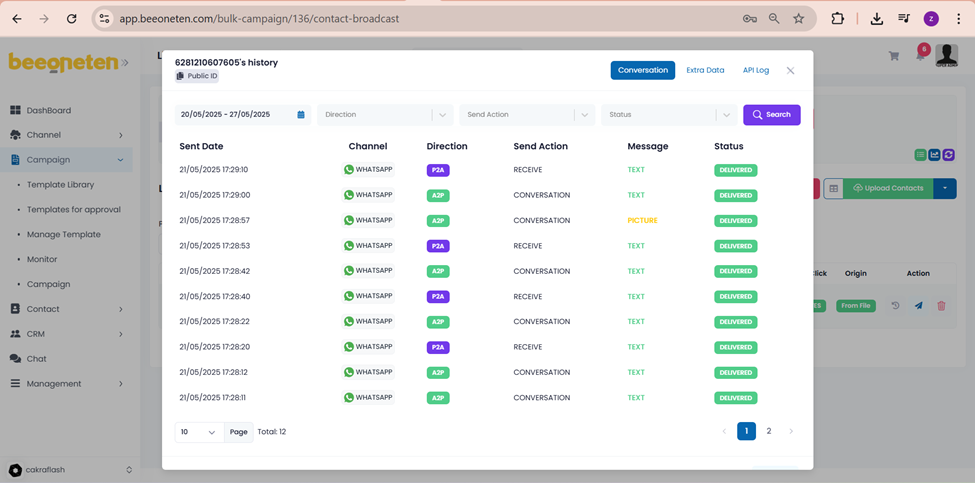
Click on Information button to observe the end-user interacting with the message
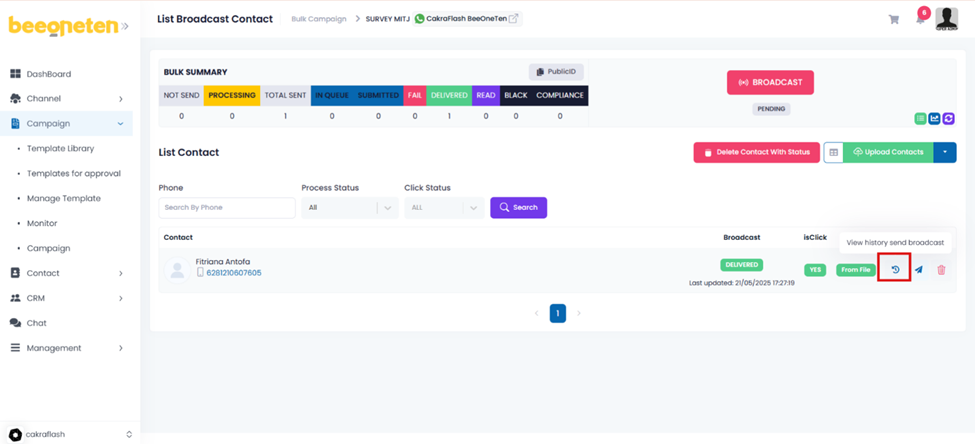
- Note:
- Able to see how and when users interact with flow messages.
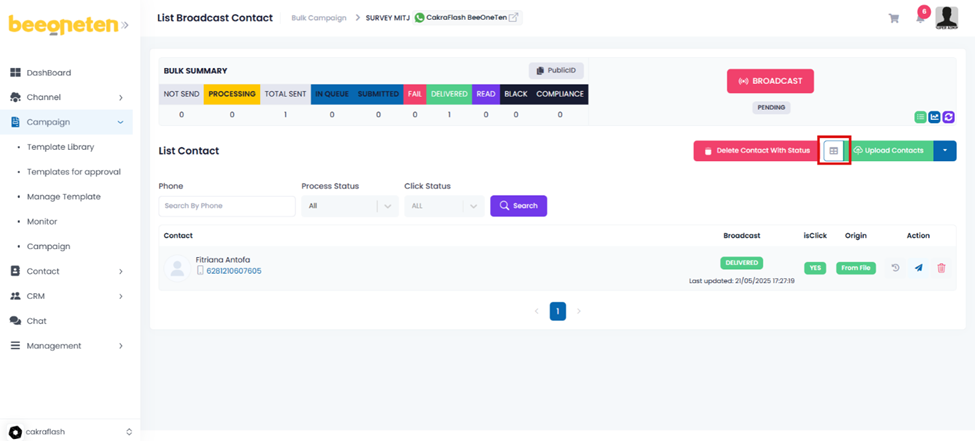
- Remaining buttons in Contact Broadcast:
- Delete Contact Not Sent: delete contacts that have not been sent messages from Contact Broadcast
- Upload Contact: Upload a large number of contacts based on the format contact_import_sample_full.xlsx
- Phone number: must be format [(countrycode) your phone number]
- Note: no “+” in front your country code
- Example: 8490123456
- Name – Country – Language: No format
- extraData: use for field {{{extradata.(column header)}}} in message or API call
- Phone number: must be format [(countrycode) your phone number]

Example: Replace those extradata fields with the headers you want to use

- In this case, if you want to get makhuyenmai column (promotional code) for purpose of calling the API, use the extradata field as follows: {{{extraData.makhuyenmai}}}
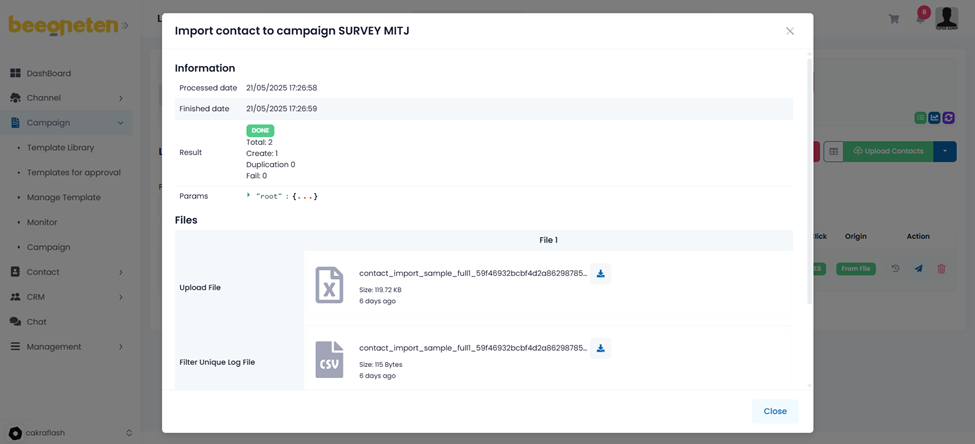
- Upload Contact file review: You can see results of the files you have uploaded before.
- Add contact testing: add phone numbers for testing purposes only
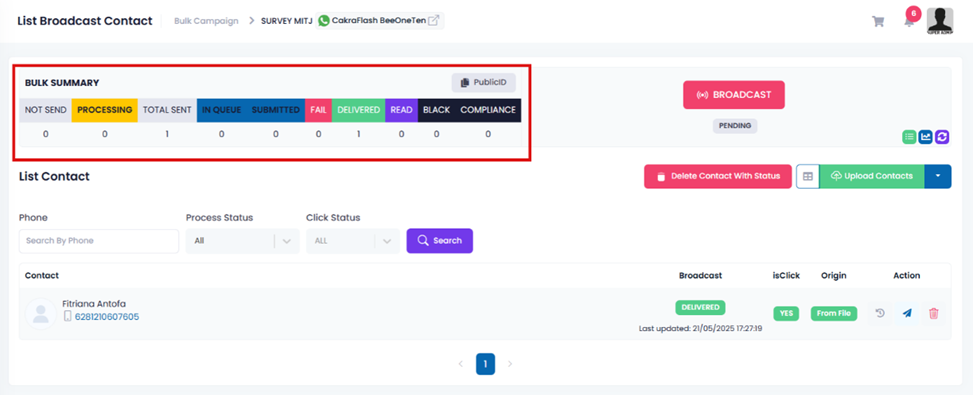
- Furthermore, you can also view the status data of the contacts after clicking send message
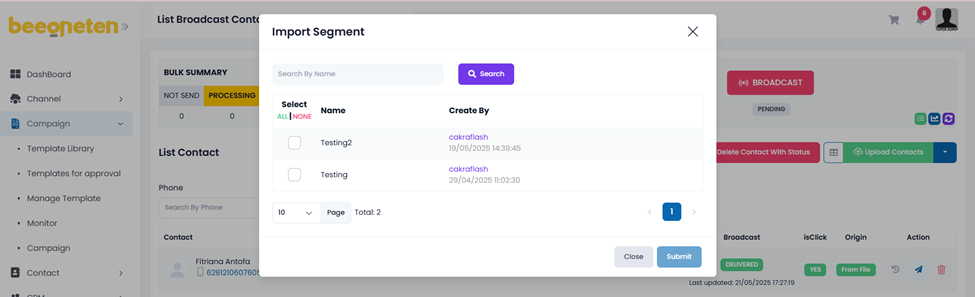
One of the outstanding features is being able to import segments (filter out suitable customers for each type of campaign) into the campaign. Read 12.3.2 Customer segment for more info.