
Click on Add bulk campaign button
| No | Element | Description | Reference URL/Input |
| 1 | Name Mandatory | Your bulk campaign’s name | Bulk campaign name |
| 2 | Type Mandatory | Your bulk campaign’s type | Broadcast only: only display broadcast [1 message only] Conversation: able to display conversation [multiple messages] |
| 3 | Expired Date Optional | Select the campaign end time | |
| 4 | Remark Optional | Enter the information that you would like to note for this campaign. Note: Only the creator and users of Beeoneten’s Messaging Marketplace can see it, the end-user won’t see it. | |
| 5 | Lead generation setting Optional | Select actions from end-users to collect information from those end-users into leads. Check 12.6 Lead. | Read (when the end-user receives the message, opens it and reads it => that end-user’s information will be transferred to Lead) Click (when the end-user receives the message, opens it and clicks on it => that end-user’s information will be transferred to Lead) Conversation (when the end-user complete the conversation) |
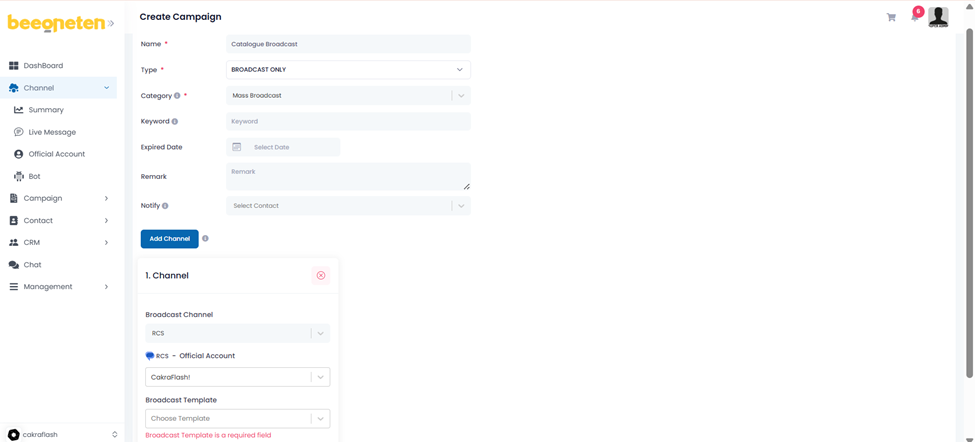
Click Add Channel button
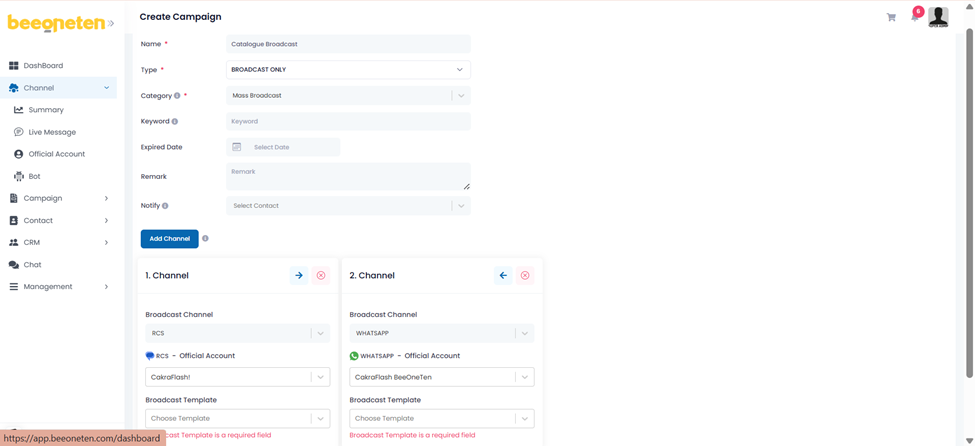
- The first channel created will have priority in sending the message. If the message sent to the first channel fails, then another message will be sent to the second channel.
- Example: As screenshot shown above, the RCS channel is created first, hence the advertising message will be sent to RCS of customer A with priority. If that message delivery fails, another message would be sent to WhatsApp app of customer A.
| No | Element | Description | Reference URL/Input |
| 1 | Channel Mandatory | Select channel you would like to use for sending message Note: Do not use 1 single rcs account for 2 bulk campaigns running at the same time, because it will cause template conflict and wrong content transmission. | Viber bot Viber RCS Apple Facebook |
| 2 | Bot Mandatory | Select Bot which you create on 3. Create a bot Note: Only applicable if Channel is Viber, Facebook, Telegram or AppleFor bulk campaigns that only use Broadcast only, there is no need to use bots | |
| 3 | Template Mandatory | Select the template you created for each channel in section 6. Manage Template Note: Only approved templates can be selectedFor Viber: the Viber template is only for the Broadcast and the Viber bot template is only for the Conversation. | |
| 4 | Official account Mandatory | Select the official account you created/requested for each channel in section 2. Official account management | |
| 5 | Enable broadcast Optional | Enable this option when you want to send broadcasts to the end-user. Note: Conversation campaign for Viber, RCS, Whatsapp requires 2 templates: Broadcast template and Conversation template.If you choose the campaign type as Broadcast only, you will not see this option. |
Click Create once you done
