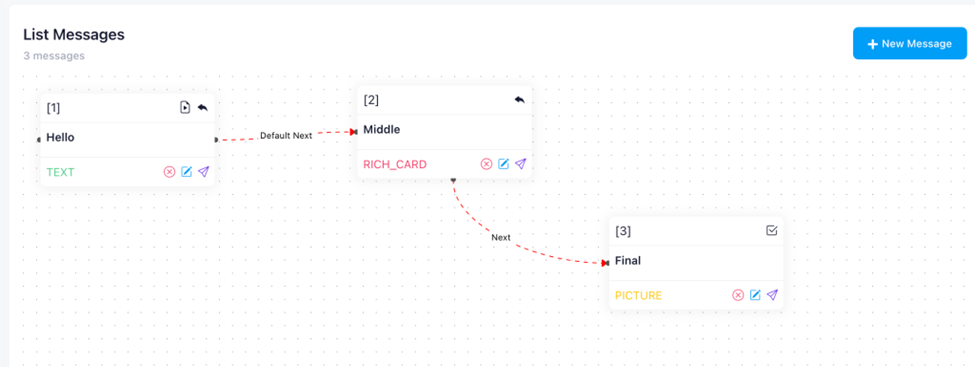
Below is a guide to create a simple flow sample with 1 broadcast message and only 3 messages in the conversation template.
For RCS
Broadcast:
- Create a broadcast message by clicking on Manage Template => click on + Template button => select Broadcast type => select the OA you would like to use => name that template and click Submit
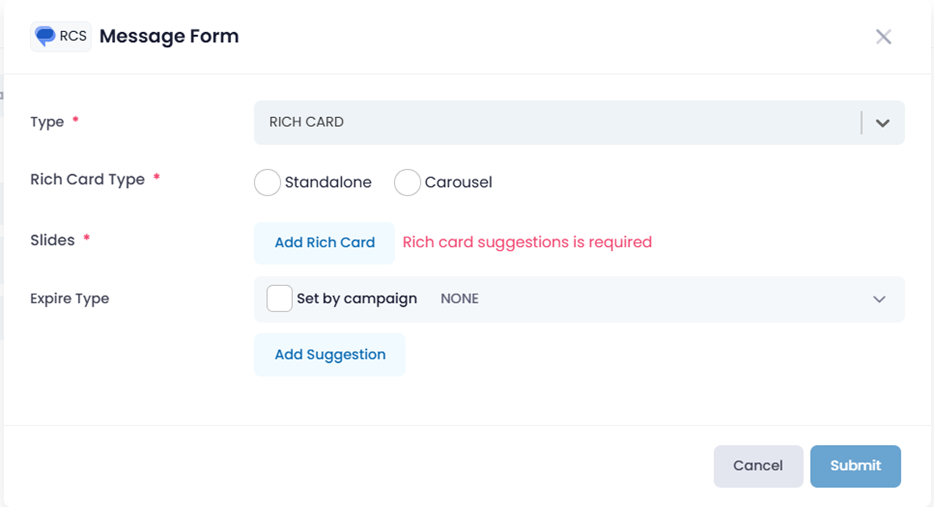
- Then click on the draft template you just created => select the type of message you want to use (for example: rich card) => select or add the required information and click Submit
Conversation:
- Create 1st message for conversation template, select the type you want to use, the message’s status default would be Start
- Example: named this message as
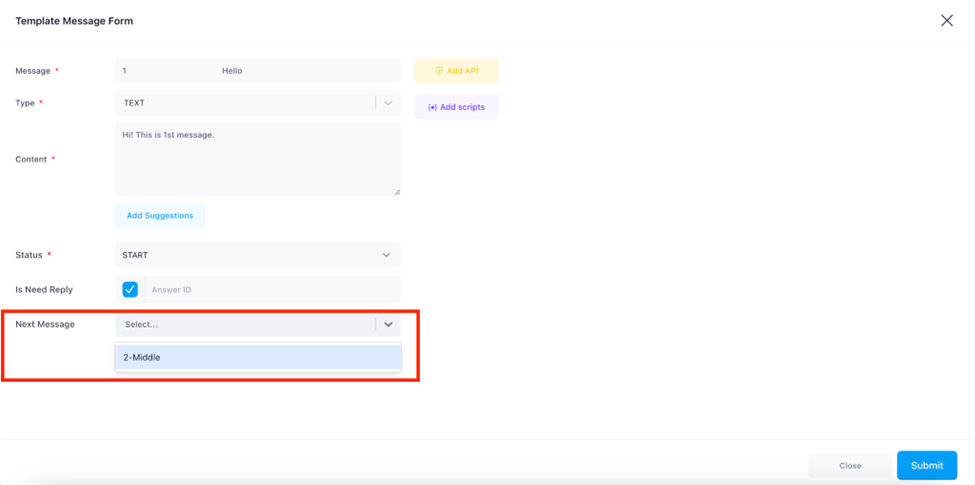
- Message ID: 1
- Message name: Hello
- Type: Text
- Content: Hi!This is 1st message.
- Status: Start
- Isneedreply: Yes as default
- Next Message: This part will be selected as soon as we finish creating 2nd message
- Example: named this message as
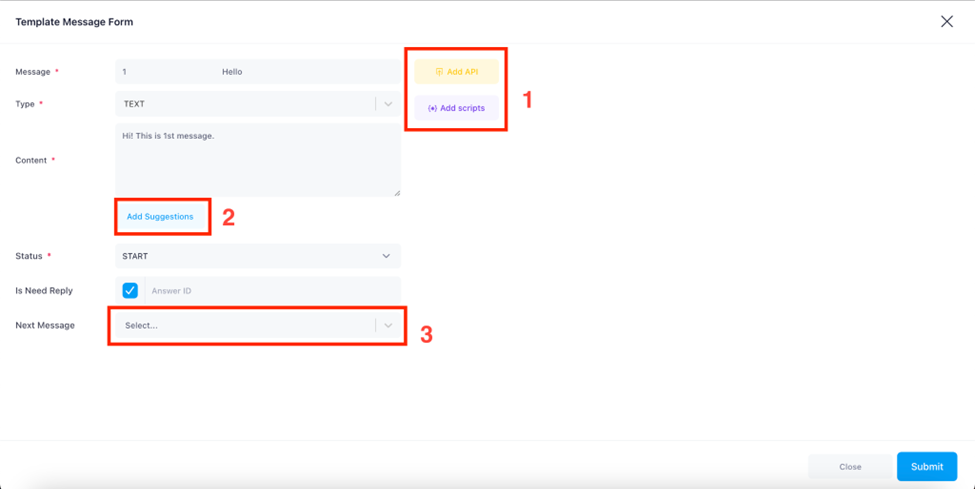
- Note: As you can see in the picture, 1 – 2 – 3 will be the priority order of Next message respectively.The most preferred is API callThe second priority is Suggestions Note: In case the type is Rich card, the suggestions in the Rich card form will take priority over the suggestions outside.And the third priority is the Next message at the bottom.
- Create 2nd message, select the type you want to use, the message’s status default would be Normal
- Example: named this message as
- Message ID: 2
- Message name: Middle
- Type: Rich card
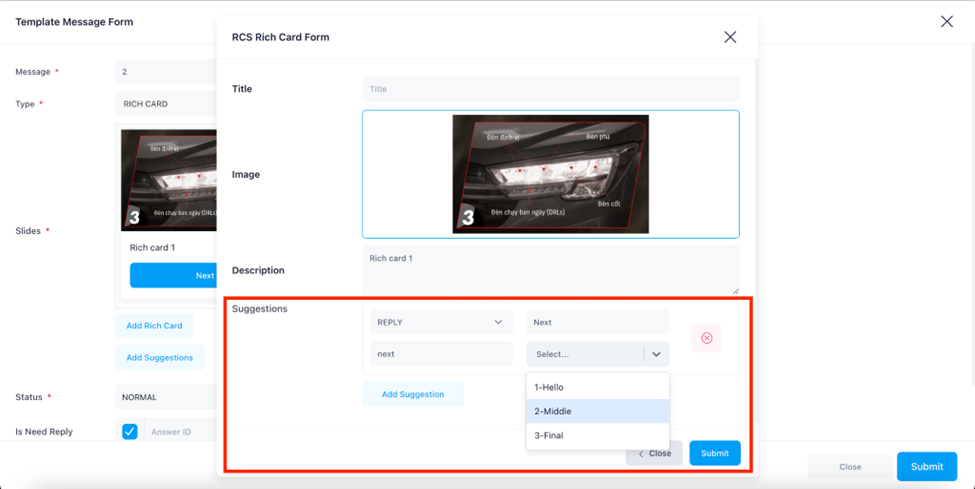
- Rich card form: Rich card form could include description, picture, and buttons (suggestions).
- Suggestions: You are able to choose 3 types of buttons including Reply, Dial and Open Url. The uses of these three buttons have been explained above.
- In this example we will choose Reply, the button name (text button) will be Next as well as post-back data, and the next message will be selected after we create the 3rd message.
- Example: named this message as
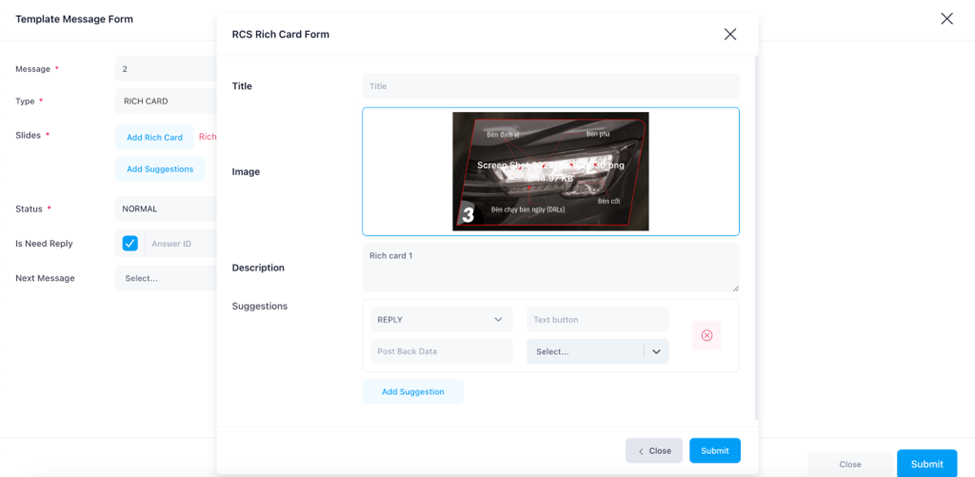
- Status: Normal
- Isneedreply: Yes
- Next Message: No need to select because in the Rich card created above will use Next message as the 3rd message
- Back to the first message, now at the Next message, we are able to select the 2nd message which is named as 2-Middle.
- Create 3rd message, select the type you want to use, the message’s status should be Complete.
- Message ID: 3
- Message name: Final
- Type: Picture
- Picture: select picture you would like to use for displaying
- Status: Complete
- Isneedreply: No need to select because this is the last message.
- Next Message: No need to select because this is the last message.
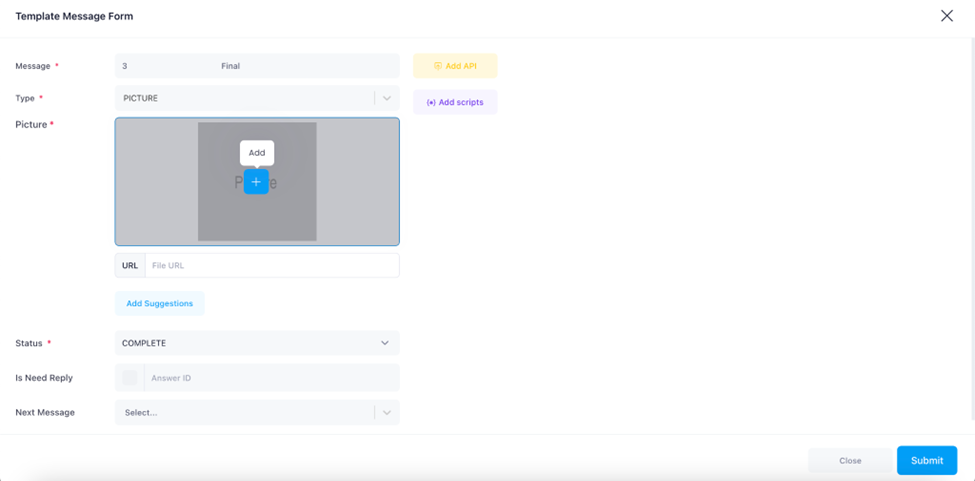
Back to the second message, now at the Next message in Rich card form, we are able to select the 3rd message which is named as 3-Final.