
Unlike other channels such as Viber or RCS. Broadcast messages for Whatsapp and Zalo channels must be generated on the Facebook and ZNS systems. Furthermore, the Whatsapp broadcast template must be approved by Facebook, as well as the Zalo broadcast template must be approved by ZNS.
Note:
Beeoneten will not have the authority to approve the template like other channels, but we will support you in the process of creating the template and asking for approval.
- Open WhatsApp Manager via this link: https://business.facebook.com/wa/manage/home/?business_id=1342548736551094&waba_id=119146157853417 to start creating broadcast template and get approval from Facebook
- Sign in your Facebook business account
Select Account tools in the drop-down menu list on the left and then select Message templates
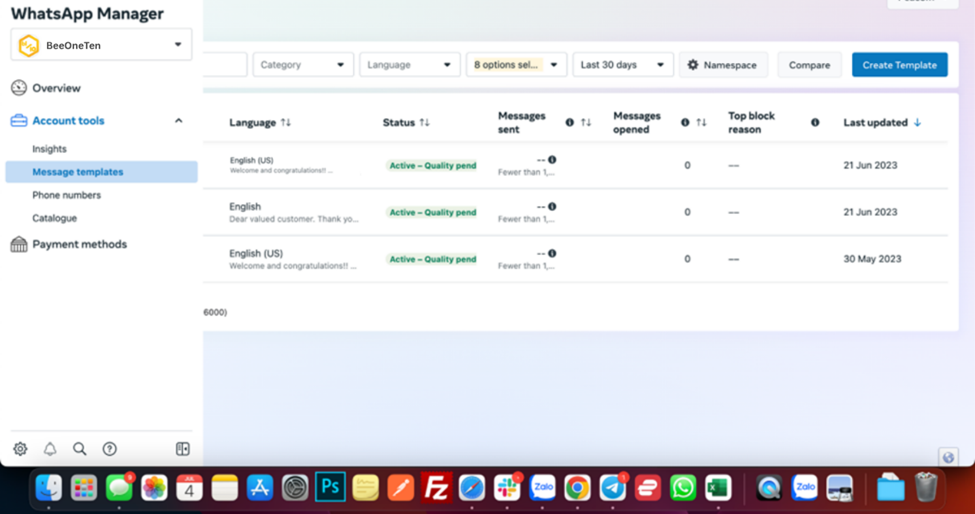
- Click the Create template button to start creating broadcast templates for your Whatsapp campaign
- Choose your category, name and languages:
- Category: Choose which type of template you’d like to create. You can hover over the template types to view details for each template.
- Name: Enter name of the template in lowercase letters, numbers and underscores only.
- Language: Choose which languages your message template will include. You can delete or add more languages in the next step.
- Click Continue once you’re done.
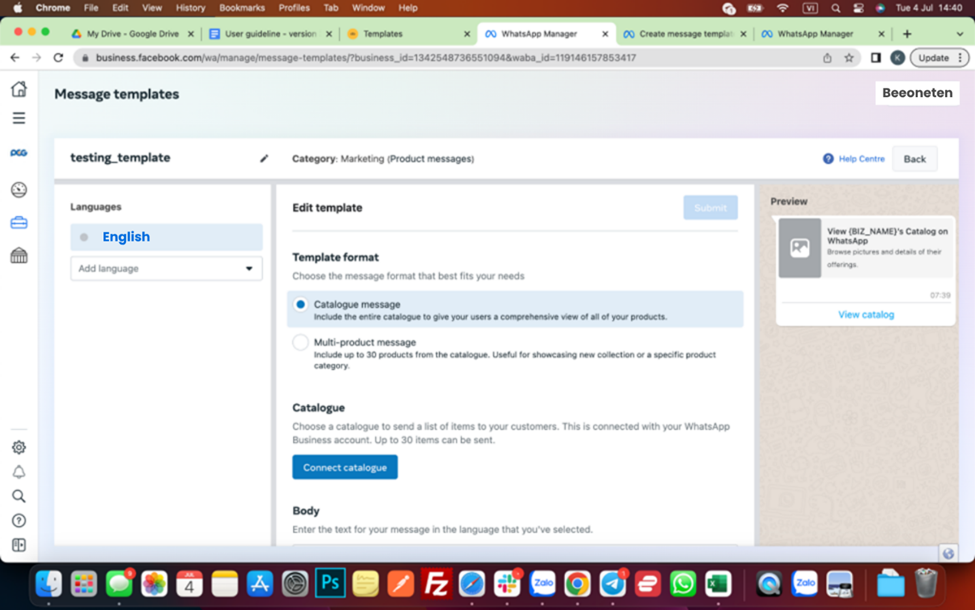
- Add your content:
- Add sample: (Optional) You can add a content example for your template by clicking the Add sample button. This helps us during the review and approval process, so we can understand what kind of message you plan to send. Make sure that these are examples and do not include any actual user or customer information.
- Header: (Optional) Add a title or choose which type of media you’ll use for this header.
- Body: Enter the text for your message in the language you’ve selected. You can edit text formats, add emojis or include variables. These allow a developer to add unique information such as specific names, locations or tracking numbers when inputting the templates into WhatsApp Business platform.
- Footer: (Optional) Add a short line of text to the bottom of your message template.
- Buttons: (Optional) Select from the drop-down menu to create buttons that let customers respond to your message or take action:
- None: If you don’t want to add any buttons, select this option.
- Call to action: Create up to two buttons that let your customers take action. The types of action include Call phone number and Visit website. This lets you add a phone number or website URL to your message. If you choose Visit website, you can choose from a Static (fixed) website URL or a Dynamic website URL, which creates a personalised link for the customer to view their specific information on your website by adding a variable at the end of the link.
- Quick reply: Create up to three buttons that let your customers respond to your message.
- When completed, click Submit.
- Your template will now be sent for review. The status of your template is viewable under Message templates. After your message has been approved, you can work with your developer to input your message templates into WhatsApp Business platform account by referring to the Sending message templates developer document.
